

Rezept: Bühnenprojektionen für Theater und darstellende Künste
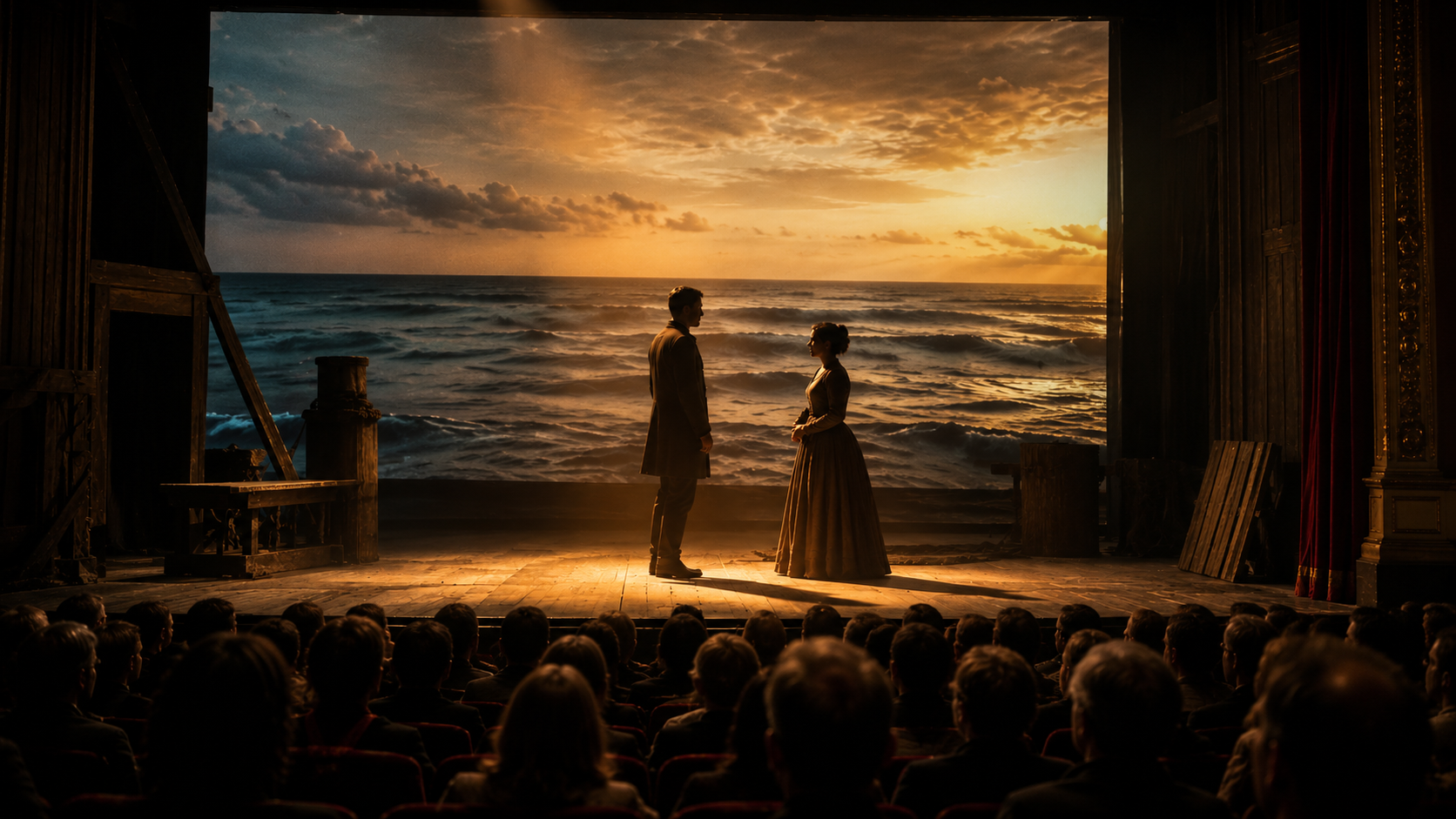
Actors perform on stage in front of a video projection.
You’ve got a week until opening night. The director wants ocean waves projected behind the shipwreck scene, a sunset that fades during the monologue, and a video montage for intermission. Your options, as you understand them: learn complex cue-based software in five days, or point a laptop at the wall and hit play at roughly the right moment.
There’s a third option. This recipe walks you through setting up reliable, triggerable stage projections using Visibox — organized by scene, controlled in real time, and simple enough that your stage manager or a volunteer can run them.
Zutaten
- Visibox (spaceage.tv) — free to start, Pro plan opens up all features and unlimited clips
- A laptop (Mac or Windows) — this will run Visibox and output video to your projector
- Video projector or LED display — whatever the venue provides for stage projection
- HDMI cable (or adapter) — to connect the laptop to the projector
- Your visual content — video backgrounds, still images, title cards, pre-show slides, anything you want projected
- (Optional) Audio connection — if you want Visibox to play sound effects or underscoring through the house speakers
- (Optional) Camera with USB or HDMI — for live camera feeds (IMAG for large venues)
Werkzeuge
- Visibox — used to organize content by scene, trigger playback, and control the projection output
- Computer Keyboard, Stream Deck, or MIDI controller — whatever your operator will use to trigger cues during the show. Keyboard shortcuts work fine; a Stream Deck adds visual button labels
Verfahren
Step 1: Think in scenes, not cue lists
Traditional theater projection software asks you to build a sequential cue list — Q1 fires, then Q2, then Q3, in order. That works until the director cuts a scene in tech rehearsal and your cue numbers are suddenly wrong.
Visibox works differently. You create Songs — but for theater, think of each Song as a scene or act. Within each Song, you load Clips — these are your individual visual cues. You can trigger any Clip at any time, in any order. No cue-list reprogramming when things change.
Set up your Project:
- Open Visibox and create a new Project for your production.
- Create a Song for each scene (or act, depending on how granular you need). Name them clearly: "Act 1 Scene 1 — The Garden," "Act 1 Scene 2 — The Castle," etc.
- You can also create Songs for non-scene moments: "Pre-Show," "Intermission," "Curtain Call."
Step 2: Load your visual content
Within each Song (scene), add the visual content you need for that part of the show.
- Drag and drop video files, images, or graphics into the Song. Each becomes a Clip. You can also copy media files from the desktop and paste them into a Song in Visibox.
- Set end behaviors for each Clip:
- For looping backgrounds (ocean waves, starfield, rain): set the Clip to Loop so it plays continuously until the operator triggers the next cue.
- For one-shot content (a lightning flash, a title card): set it to Freeze so it plays once and holds on the last frame, or Stop to go to black. Next Clip will automatically play the next Clip in the current Son.
- For sequences within a scene: set a Clip to Cue Next Song or Play Next Song if you want it to automatically advance and either wait (Cue) or start (Play) the first Clip in next scene’s content when it finishes.
Step 3: Set up your projection output
- Connect your laptop to the projector or LED wall via HDMI, VGA, DVI, or whatever video connectors are common to your computer and display.
- In Visibox, go to Window > Full Screen (or press the keyboard shortcut) to send the Output to the projector. The Controller window stays on your laptop screen so your operator can see what’s happening.
- If the projector is rear-mounted or ceiling-mounted, use Project > Flip to mirror the image horizontally or vertically.
- For venues with multiple projectors, Visibox supports video wall controllers — a single output split across multiple screens. Configure this under Project > Video Wall Stretch.
Step 4: Trigger cues during the show
During the performance, your operator triggers Clips by clicking them in the Controller window. Arrow keys navigate between Songs (scenes), and clicking a Clip plays it — that’s the whole workflow.
For a more tactile setup, Visibox also supports Stream Deck (labeled buttons with thumbnails — your operator sees exactly what each button does) and MIDI controllers (useful if your production already uses MIDI for lighting or sound). But keyboard and mouse work fine.
Step 5: Rehearse and lock
Run a tech rehearsal with your operator triggering cues alongside the cast. Adjust transitions, tweak end behaviors, reorder Clips as needed. When you’re done, save the Project — Visibox remembers everything. Opening night, your operator opens the file and it’s exactly where you left it.
Serving Suggestions
- The terminology translation. In Visibox, "Songs" are scenes, "Clips" are cues, and a "Project" is your show. Once you make that mental shift, everything maps naturally to theater workflow.
- Preview before you project. The Output View in Visibox’s Controller window shows exactly what the audience sees — your operator can verify the next cue wherever they are in the theater.
- Use it for pre-show and intermission too. Load sponsor logos, program information, or ambient visuals into a "Pre-Show" Song that loops until the house lights dim. You can even add audio-reactive effects triggered by the computer microphone or any audio input.
What about QLab, ProPresenter, or PowerPoint?
QLab is powerful but Mac-only, expensive for video, and built around sequential cue lists. ProPresenter is worship-focused. PowerPoint is a slideshow — you can’t trigger slide 47 instantly when the director calls an audible. If your projections are straightforward backgrounds and cues triggered on demand, Visibox is faster to set up, runs on Mac and Windows, and lets you fire any visual at any time without programming a cue sequence.
Try It
Download Visibox free at spaceage.tv and build a test Project with a few scenes. And be sure to check out the extensive Visibox manual if you need help getting started.